Network Discovery and Sharing
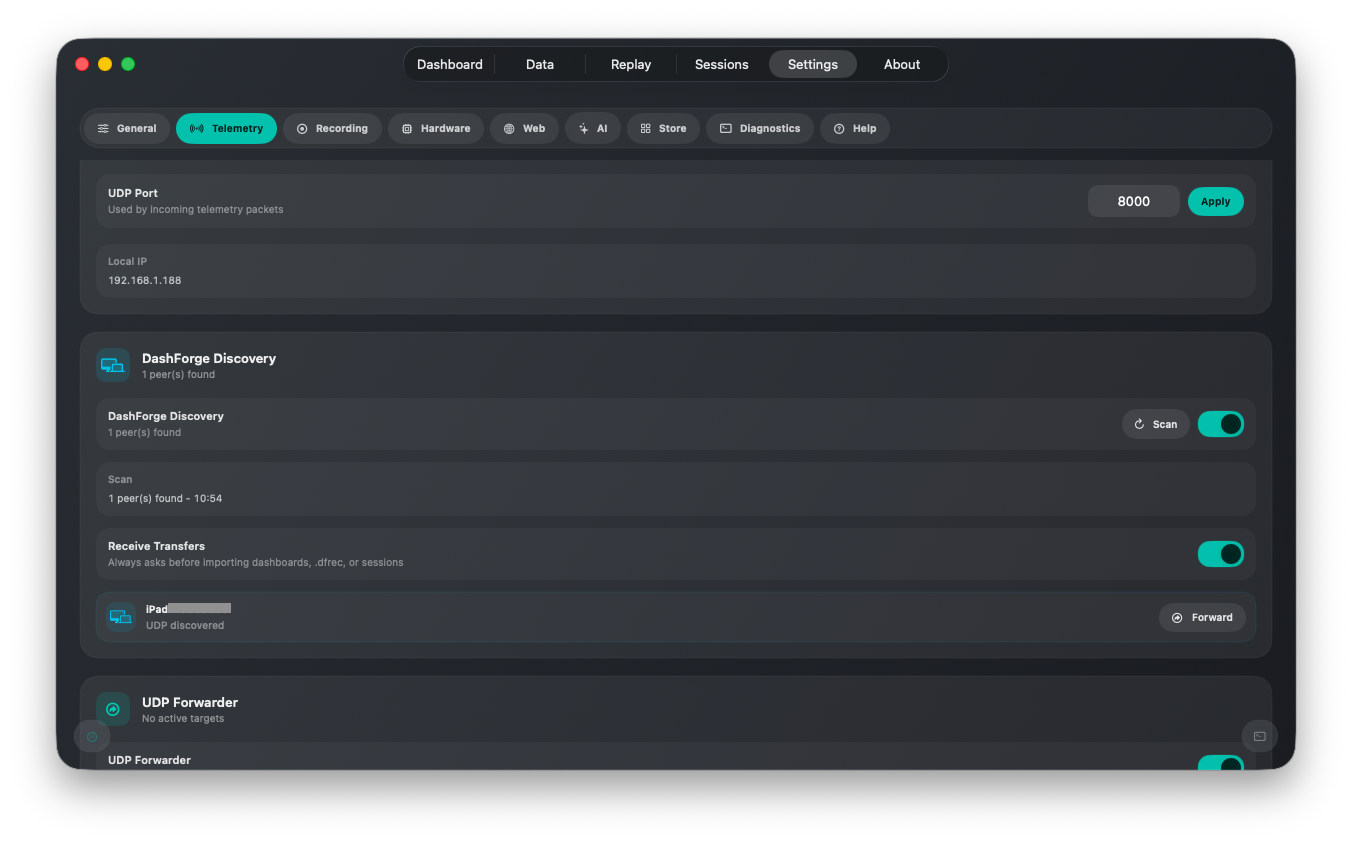
DashForge 1.1.0 can find other DashForge apps on the same local network. Discovery is used for secure file sharing and for adding UDP forwarder targets without entering an IP address manually.
Enable Discovery
On each device:
- Open
Settings > Telemetry. - Find
DashForge Discovery. - Enable discovery.
- Enable
Receive Transferson devices that should accept files. - Press
Scanto restart the Bonjour scan immediately.
Both devices must be on the same local network. On Apple platforms, allow Local Network access when requested.
Security Model
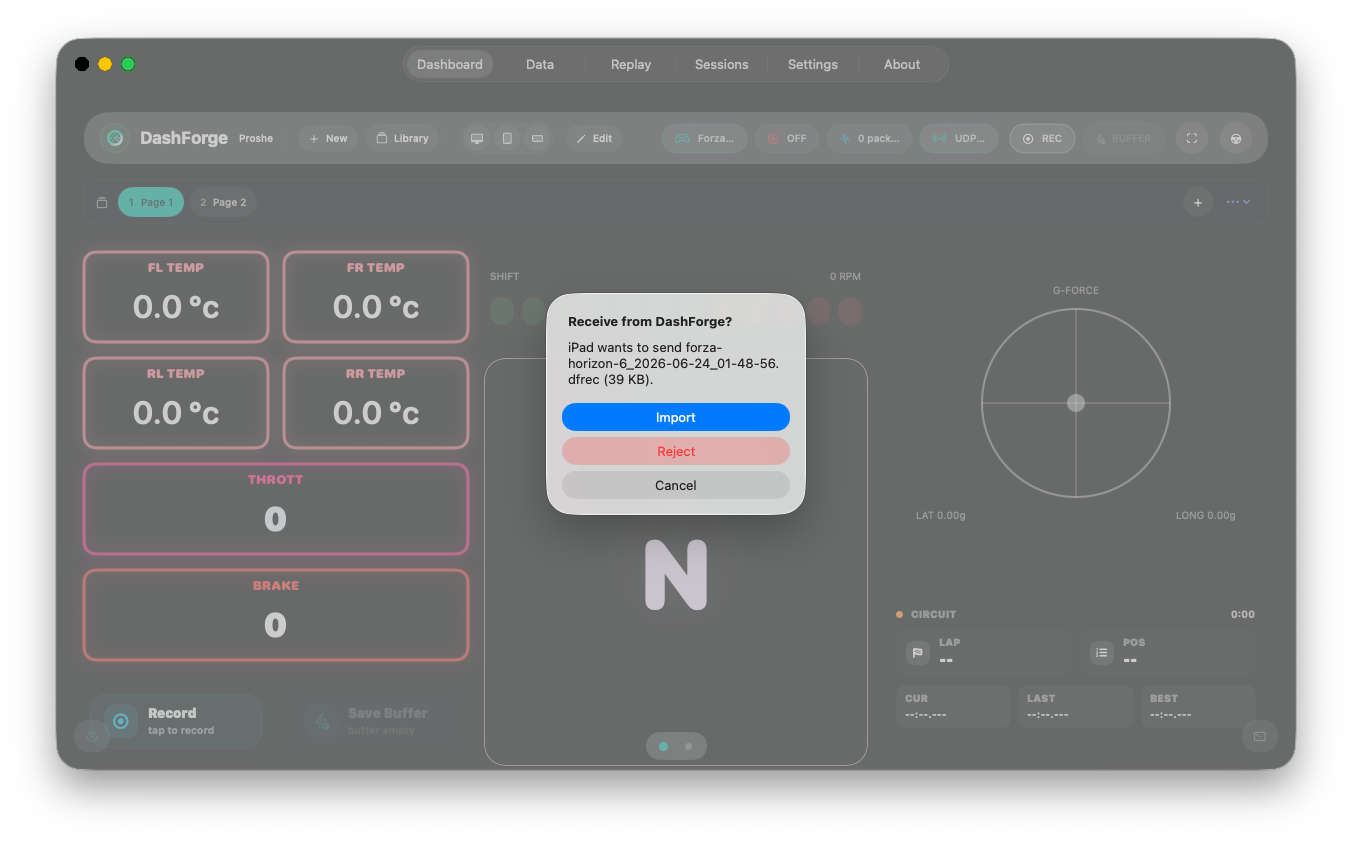
Receiving is explicit:
- The sender submits only a small transfer request.
- The receiver sees the sender name, file name, type, and size.
- The receiver chooses
ImportorReject. - The payload is sent only after
Importis selected.
DashForge does not silently import incoming files. Transfers are limited in size and use a local peer identity to avoid discovering the same app as a remote peer.
Send a Recording
- Open
Replay. - Find the recording.
- Open its send menu (paper-plane icon).
- Select a discovered DashForge peer.
- Accept the request on the receiving device.
The receiving Replay list refreshes after import.
Send a Session
- Open
Sessions. - Find the session.
- Open its send menu.
- Select a peer.
- Accept the request on the receiving device.
DashForge creates a session package containing the .dfsession file and every linked .dfrec that is still available. Relative links are rebuilt during import, then the Sessions and Replay libraries refresh automatically.
Send a Dashboard
- Open the Dashboard library.
- Find the dashboard.
- Open its send menu.
- Select a peer.
- Accept the request on the receiving device.
The same .dfdash package used by normal dashboard export is transferred, including packaged assets.
Add a Discovered UDP Forwarder
- Open
Settings > Telemetry > DashForge Discovery. - Find a peer that reports UDP support.
- Select
Forward. - Enable
UDP Forwarderif it is not already enabled.
DashForge stores the Bonjour service identity, so the destination can still resolve when its local IP address changes. Duplicate targets and the local device are ignored.
Forward Only relays raw packets without parsing them or updating the dashboard on the forwarding device. This is useful for a lightweight relay.
Troubleshooting
No peers appear
- Enable discovery on both devices.
- Press
Scanon both devices. - Confirm both devices use the same Wi-Fi or Ethernet LAN.
- Disable guest Wi-Fi or client isolation.
- Allow DashForge through macOS/iOS Local Network permissions and firewalls.
- Keep the app open while scanning.
The peer appears but cannot receive files
Enable Receive Transfers on that peer. Discovery and receiving are separate controls.
Forward is disabled
The peer must advertise its UDP listener, and it must not already exist in the target list.
A transfer is interrupted
Retry from the source. Partial payloads are not imported.