Dashboard Builder
Dashboards are the main driving surface in DashForge. A good dashboard should show only the information you need while driving, then move deeper analysis and setup tools to secondary pages.
Recommended Structure
| Page | Purpose | Suggested widgets |
|---|---|---|
| Race | Drive cleanly | Race Control, Circuit Info, Fuel or Battery |
| Analysis | Understand mistakes | Live Trace, Drift Tyre HUD, tyre and input widgets |
| Tools | Control and diagnostics | Action Buttons, hardware status, performance panel |
Edit Mode
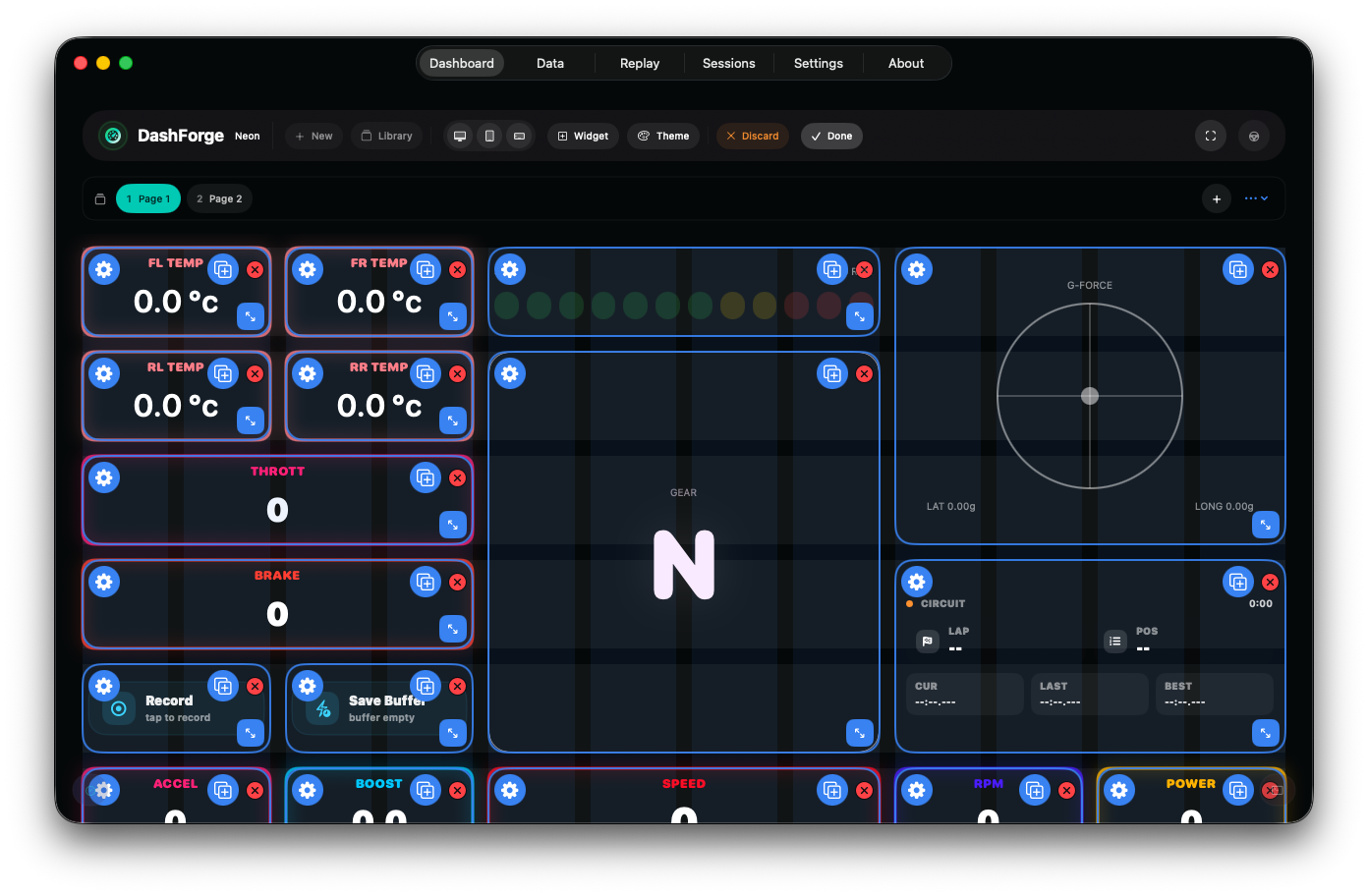
Use edit mode when you want to change the layout.
You can:
- add widgets
- drag widgets on the grid
- resize by grid units, including half-step sizing where supported
- duplicate widgets
- remove widgets
- change widget configuration
- switch theme and style options
- save or discard changes
DashForge marks the dashboard as needing save after layout, page, name, or widget configuration changes.
For a complete list of every available widget, see the Widget Reference.
Asset Library
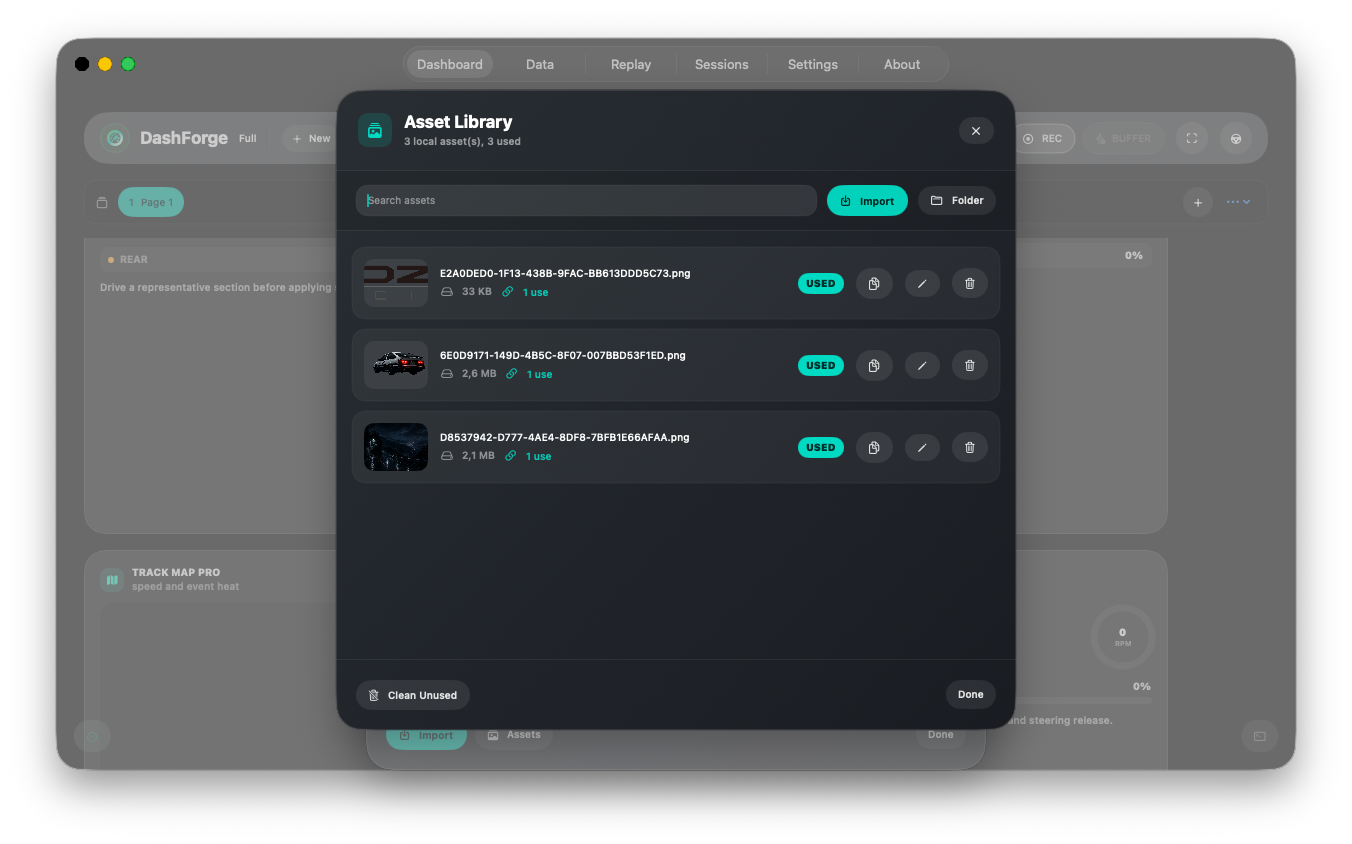
Dashboard images are stored in the local Asset Library.
Open Dashboard > Library > Assets to:
- import PNG, JPG, HEIC or WebP files
- preview local dashboard assets
- copy an asset filename for advanced widget configuration
- see whether an asset is currently used by dashboards
- rename unused assets
- delete unused assets
- clean all unused assets safely
Used assets cannot be deleted from the library panel. Remove them from image widgets, stickers or page backgrounds first, then rename or clean unused assets. Imported assets keep their original filename when possible; duplicates receive a numbered suffix.
Click the usage count on an asset to see which dashboard, page, widget, sticker,
or background currently references it. Clean Unused asks for confirmation before
deleting files.
Dashboard exports include the assets referenced by:
- image widgets
- sticker image sources
- custom page backgrounds
For sticker widgets, set Source to Image, then use Choose Asset to load an
existing library asset or Import Image to add a new image file.
Pages
Dashboards can contain multiple pages. Older dashboards open as a single-page dashboard for backward compatibility.
Use pages to avoid overcrowding:
- Put race-critical widgets on page 1.
- Put analysis and trace widgets on page 2.
- Put experimental or hardware controls on later pages.
Page controls are hidden in drive mode to keep the cockpit clean.
Widget Size Tips
1x1: compact indicators, action buttons, stickers, simple bars.2x1: horizontal status widgets, quick lap or fuel panels.2x2: gauges, tyre state, compact telemetry cards.3x2or larger: Live Trace, graphs, analog gauge clusters.
Avoid putting too many high-frequency visual widgets on the same page. If the performance panel shows low FPS or high CPU, split heavy widgets across pages.
Web Builder
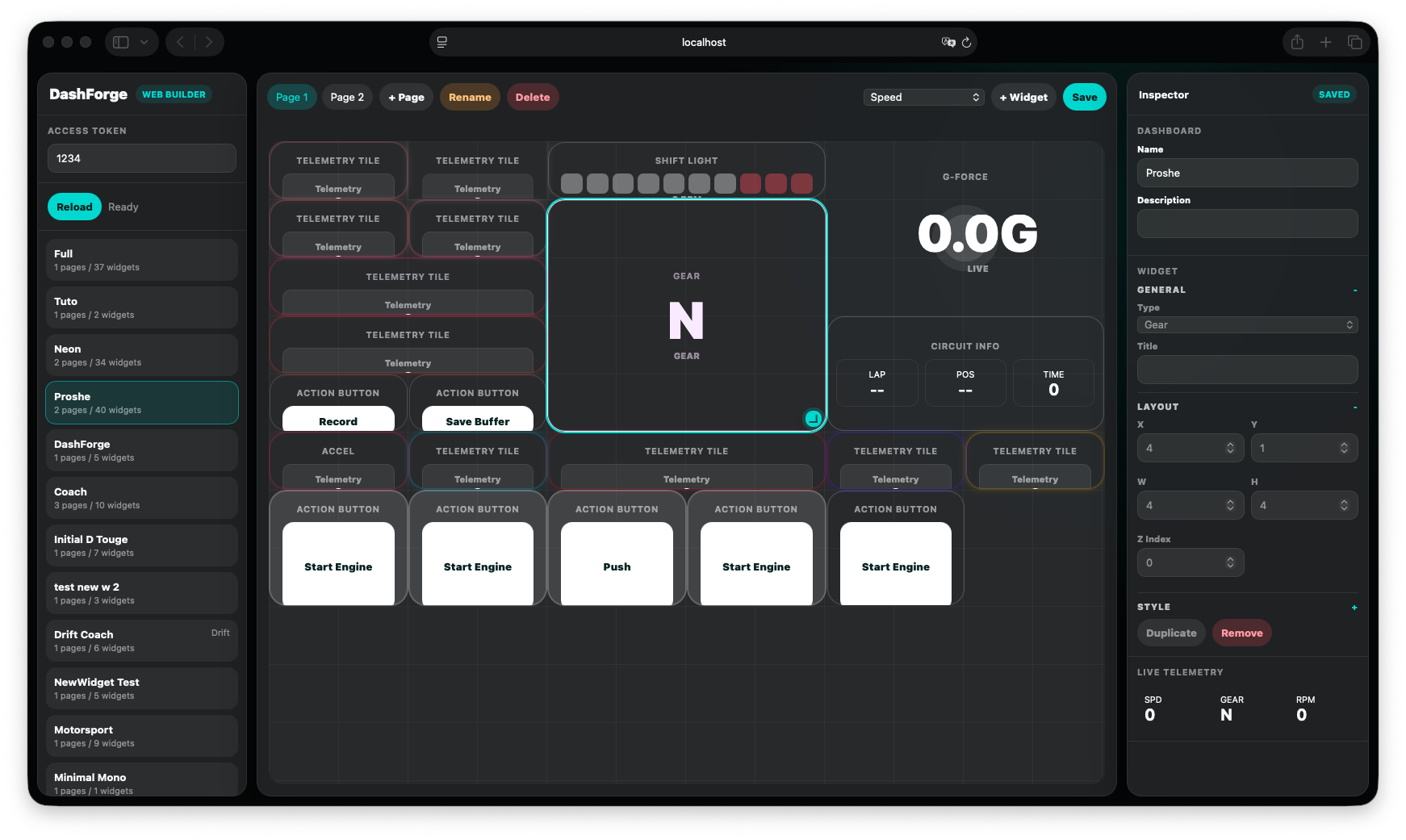
The Web Builder lets you edit dashboards from a browser on the same local network.
Use it when the DashForge display is mounted in a rig or when you prefer editing from another device. It supports dashboard selection, page management, adding widgets, dragging, resizing, duplication, and widget settings.
Enable it in Settings > Web, then open the shown local URL and enter the access token.
Save Checklist
Before driving:
- save the dashboard
- exit edit mode
- verify the correct page is selected
- verify the packet counter increases
- hide debug overlays unless you need them