Bass Shakers
Bass Shakers convert telemetry into low-frequency audio for tactile feedback.
Use them to feel:
- engine RPM
- road texture
- suspension hits
- tyre slip
- brake lock
- gear shifts
Input Source
DashForge can drive Bass Shakers from telemetry, audio input, or both.
| Source | Best for | Notes |
|---|---|---|
Telemetry | precise RPM, tyre slip, brake lock, suspension and gear shifts | Recommended for supported games. |
Audio Input | games without telemetry, console audio, ambient sound, or virtual audio devices | Detects bass energy and sharp transients from the selected system input. |
Telemetry + Audio | adding extra rumble and impact peaks on top of telemetry | Keep audio gain moderate to avoid masking telemetry detail. |
When audio mode is enabled, choose Audio Input Device in the Bass Shakers
panel. System Default follows the macOS default input. You can also choose a
specific microphone, line input, capture card, or virtual input such as
BlackHole, Loopback, or another audio routing tool.
DashForge does not capture protected system audio by itself. To react to game
audio, route the game or system output into a virtual input and select that
device in Audio Input Device.
Audio Input Tuning
The audio mode exposes two meters:
Input: overall incoming levelEvents: detected bass/transient events that can trigger stronger shaker hits
Useful starting values:
| Setting | Start | Purpose |
|---|---|---|
| Audio Gain | 55-70% | Overall amount of audio-driven vibration. |
| Sensitivity | 60-85% | How easily peaks become events. |
| Noise Gate | 3-7% | Ignores fans, room noise and quiet idle audio. |
| Bass Mix | 65-85% | Low-frequency rumble contribution. |
| Transient Mix | 45-75% | Sharp impacts, gear thumps and hit detection. |
Raise Noise Gate until the shaker is quiet when the room/game is quiet. Then
raise Sensitivity until real events show on the Events meter.
Basic Setup
- Open
Settings > Hardware. - Enable Bass Shakers.
- Choose
TelemetryorAudio Input. - If using audio mode, choose
Audio Input Device. - Choose a default audio output.
- Add one shaker.
- Select its cockpit position.
- Choose output device and channel routing.
- Start with moderate gains.
For a complete example using a Nobsound USB amplifier and a Douk Audio BS-1 50W bass shaker, follow Tutorial: Nobsound + Douk Audio BS-1 50W.
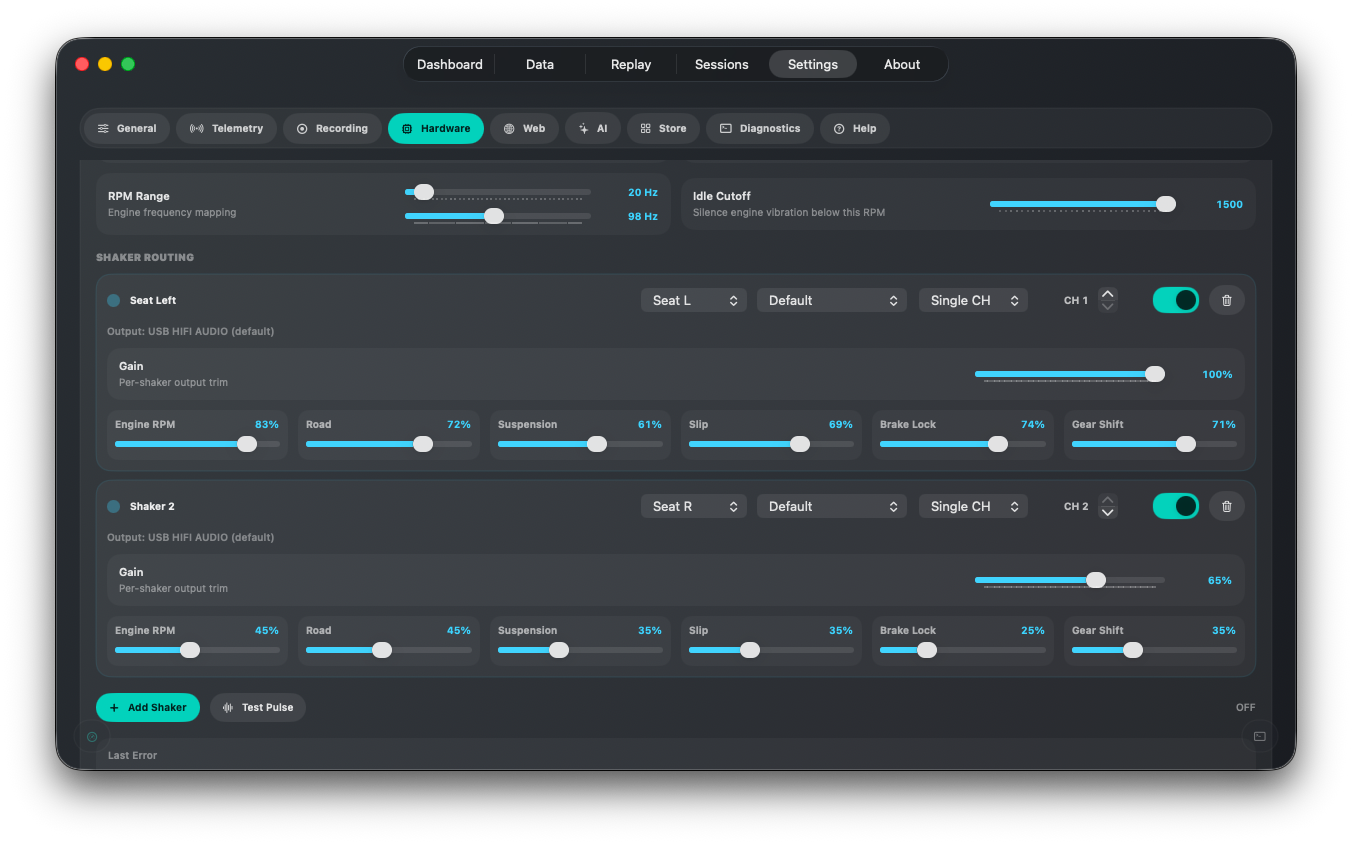
Recommended first shaker:
| Setting | Value |
|---|---|
| Position | Seat Center |
| Engine RPM | 40-50% |
| Road | 35-45% |
| Suspension | 30-45% |
| Slip | 20-35% |
| Brake Lock | 10-20% |
| Gear Shift | 35-50% |
Cockpit Positions
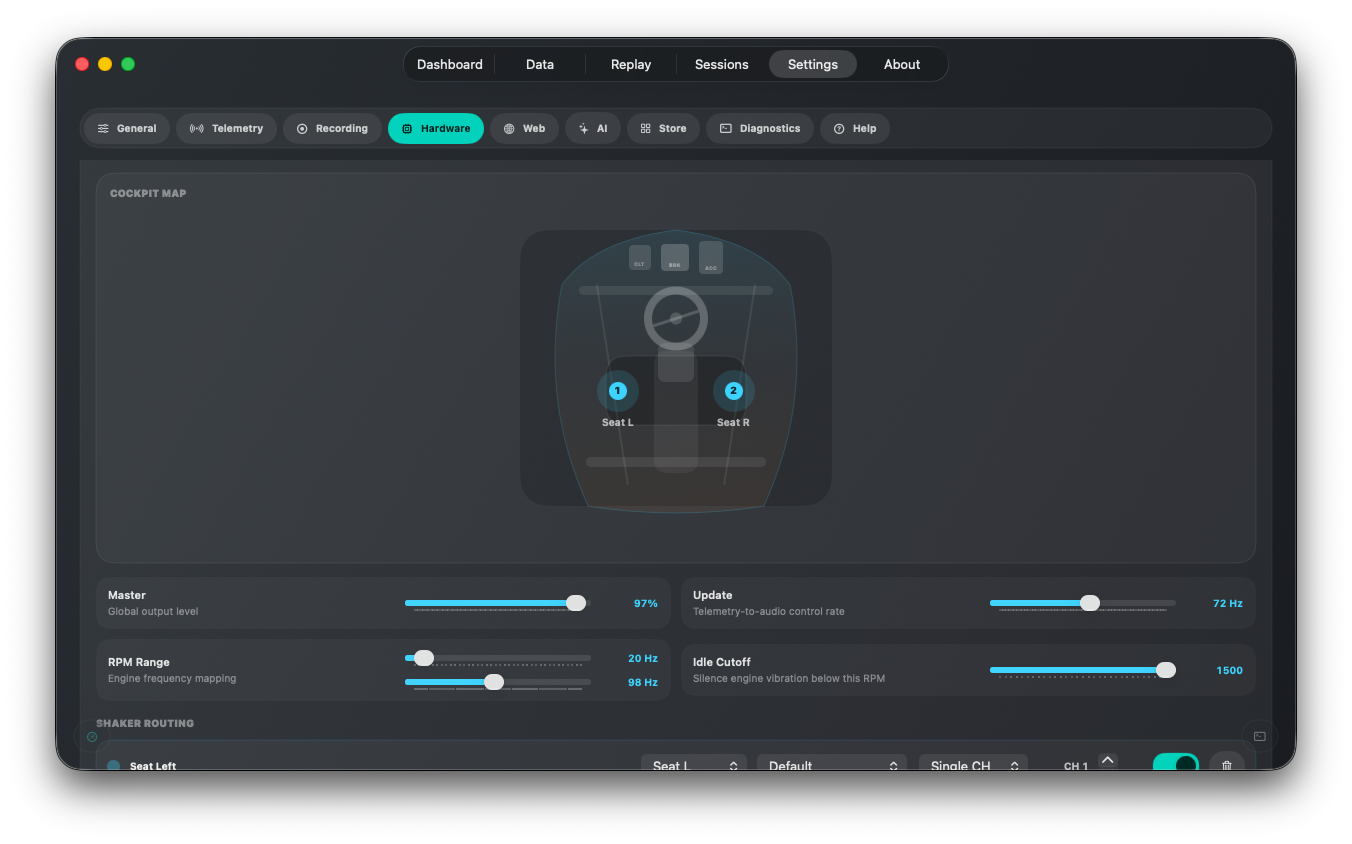
DashForge supports:
| Position | Typical mounting |
|---|---|
| Seat Left / Seat Center / Seat Right | Under or behind the seat |
| Rear Left / Rear Center / Rear Right | Rear frame, rear deck, or rear chassis bar |
| Pedals | General pedal plate vibration |
| Brake Pedal | Brake-specific feedback |
| Clutch Pedal | Clutch-specific feedback |
| Accelerator Pedal | Throttle-side pedal vibration |
| Wheel Deck | Steering wheel or dashboard frame |
| Center | Single-shaker fallback or chassis center |
The cockpit map shows where each shaker is assigned and lights up as telemetry drives it. Position affects the signal mix: rear placements emphasize rear slip and rear suspension, pedal placements emphasize brake lock and pedal events, and seat/center placements work well for engine and road rumble.
Output Routing
Each shaker can use:
- the default audio device
- a specific audio output
- a single stereo channel
L+R Monowhen you want the same shaker signal on both left and right channels
Use L+R Mono only when the two physical outputs should receive the exact same signal.
For independent left/right shakers, keep separate channels.
Important Parameters
| Setting | Meaning |
|---|---|
| Input Source | Telemetry, Audio Input, or both. |
| Default Output | Fallback sound card for shakers without a specific row output. |
| Master | Global output level for all shakers. |
| Update | Control update rate. 60 Hz is a good default. |
| RPM Range | Maps engine RPM to low-frequency tone range. |
| Idle Cutoff | Silences engine vibration below the chosen RPM. |
| Gain | Per-shaker volume trim. |
| Channel / Output Mode | Sends the shaker to left, right, or L+R mono output. |
| Effect Mix | Per-shaker blend of engine, road, suspension, slip, brake lock, and gear shift. |
Tuning Advice
- Tune one effect at a time.
- Lower engine if it masks road and suspension detail.
- Keep brake lock sharp but not constant.
- Use separate outputs only after the basic setup feels right.
- Watch the performance panel during long sessions.
For advanced hardware input and command routing, see Game Control and Hardware Overview.