Widget Reference
DashForge widgets are the building blocks of a dashboard page. Each widget reads the normalized telemetry model, so the same layout can work with live UDP, recordings, replay, and supported custom profiles.
This page mirrors the widget list implemented in DashForge 1.1.0. If a value
shows 0, --, or stays empty, open Data and check whether the selected game
or profile exposes the required telemetry field.
How To Read This Page
| Column | Meaning |
|---|---|
| Widget | Name shown in the Add Widget panel |
| Access | Standard is available to everyone. Premium requires the Premium Widgets Pack. |
| Default size | Initial grid size when the widget is added |
| Best for | The quickest way to decide whether it belongs on a page |
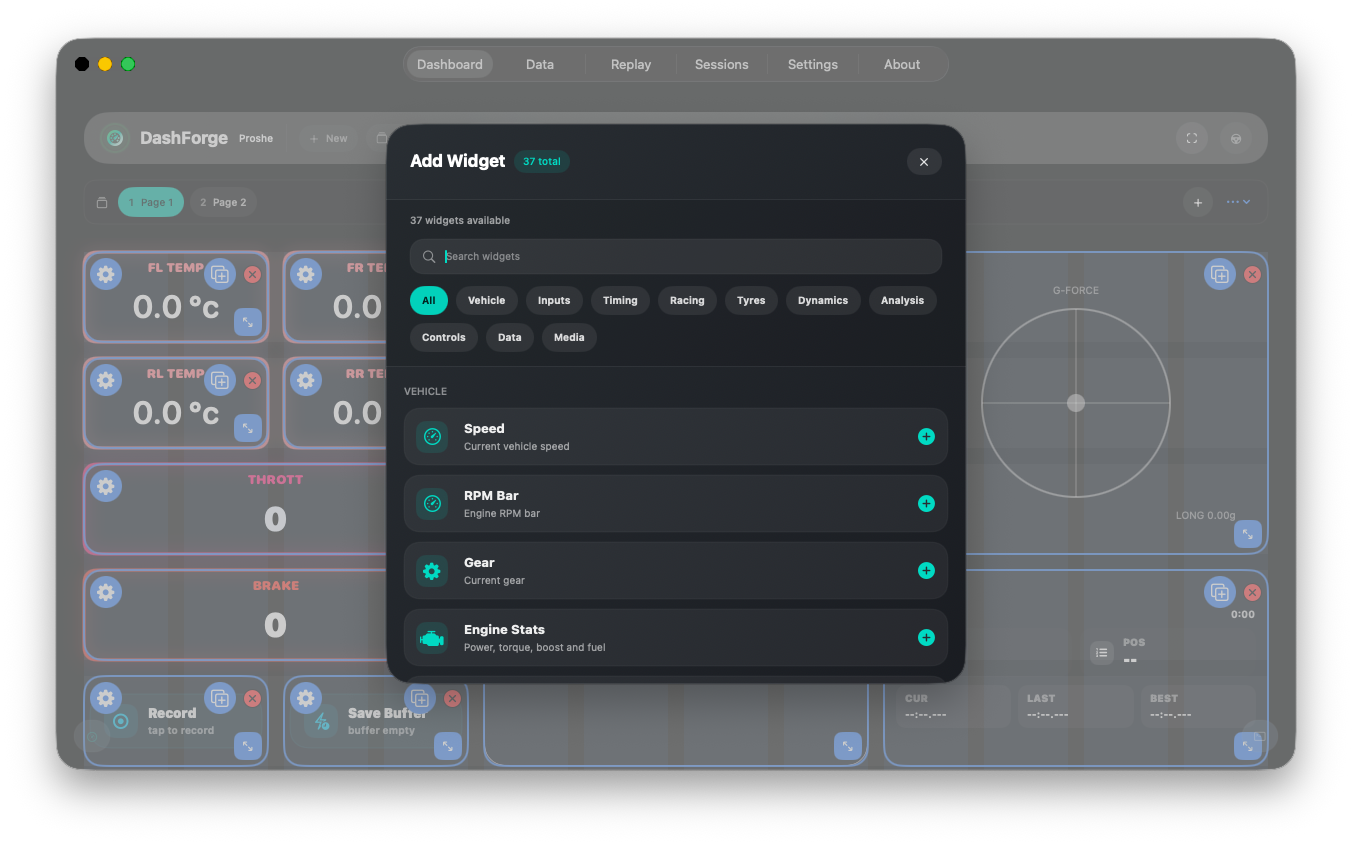
| Preview | Screenshot of the widget in a real dashboard |
Vehicle Widgets
| Widget | Preview | Access | Default size | Best for |
|---|---|---|---|---|
| Speed | 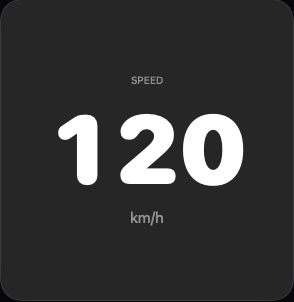 | Standard | 6x3 | Large speed readout for clean race pages. |
| RPM Bar |  | Standard | 12x2 | Wide engine RPM strip and redline awareness. |
| Gear | 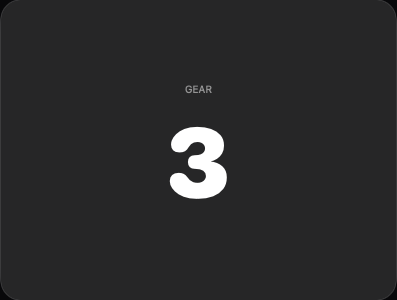 | Standard | 3x3 | Current gear as a large standalone tile. |
| Engine Stats | 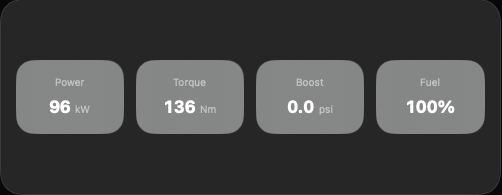 | Standard | 12x2 | Power, torque, boost, RPM, and fuel-style engine telemetry. |
| Fuel Status | 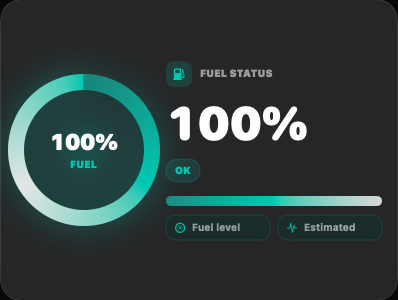 | Standard | 4x3 | Combustion fuel level, stint awareness, and compact fuel bars. |
| Battery Status | 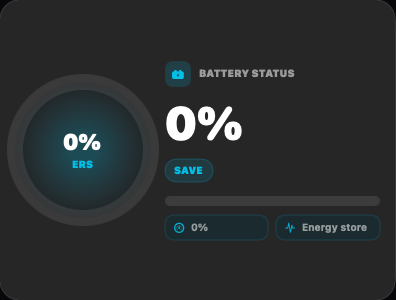 | Standard | 4x3 | ERS, hybrid, EV, or energy-store status when the game exposes it. |
| Race Dial | 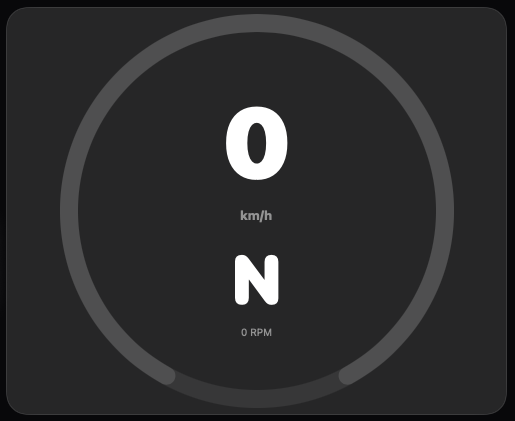 | Standard | 5x5 | Combined speed, RPM, and gear dial for classic cockpit pages. |
Fuel Status
Use Fuel Status when the profile exposes fuel, fuel-in-tank, fuel capacity, or
fuel-lap fields. The widget can be shown as a full card, minimal readout,
horizontal bar, or vertical bar depending on available space.
Battery Status
Use Battery Status for F1 ERS, EV battery, hybrid energy store, or any mapped
energy field. The compact modes are useful on small pages where the full card is
too visually heavy.
Input Widgets
| Widget | Preview | Access | Default size | Best for |
|---|---|---|---|---|
| Inputs | 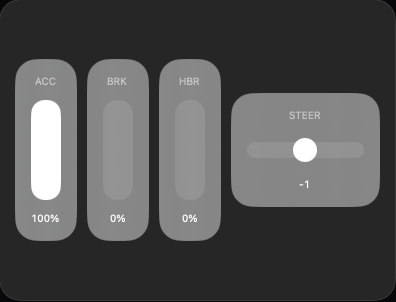 | Standard | 12x3 | Throttle, brake, handbrake, clutch, and steering visualization. |
Use Inputs while testing hardware, tuning pedal discipline, or checking parser
normalization. It is also a good debug widget when telemetry appears inverted or
clamped.
Timing Widgets
| Widget | Preview | Access | Default size | Best for |
|---|---|---|---|---|
| Circuit Info | 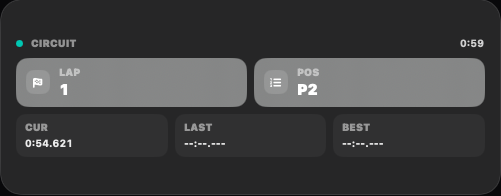 | Standard | 4x2 | Lap number, race position, current/last/best timing summary. |
| Lap Delta | 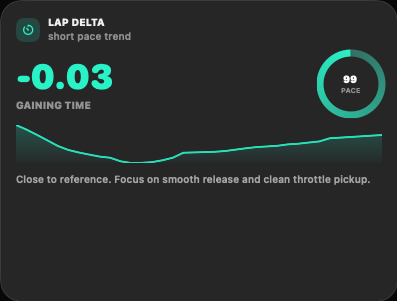 | Standard | 4x3 | Delta, trend, and lap timing hints during live or replay driving. |
Circuit Info is usually a first-page widget. Lap Delta fits better on a race
or analysis page where timing context matters more than raw speed.
Racing HUD Widgets
| Widget | Preview | Access | Default size | Best for |
|---|---|---|---|---|
| Shift Light |  | Standard | 6x2 | RPM shift timing and redline alert. |
| Race Control | 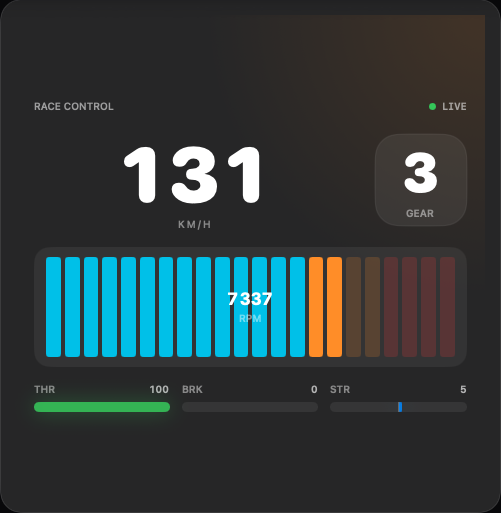 | Premium | 7x6 | All-in-one speed, RPM, gear, throttle, brake, and steering HUD. |
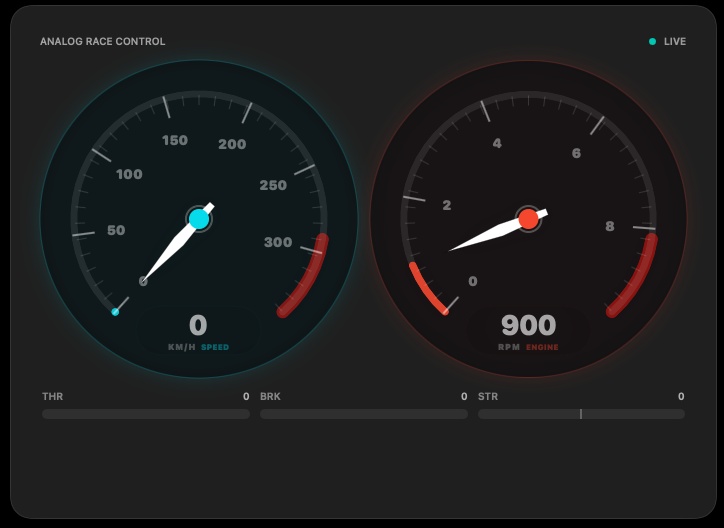
| Analog Race Control | 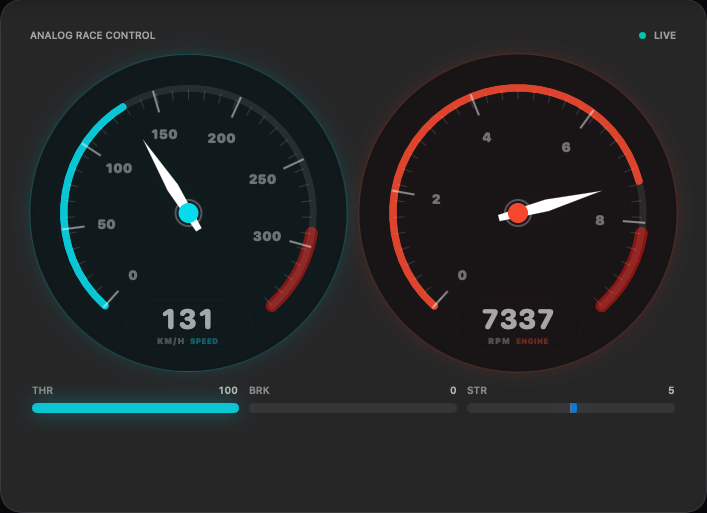 | Premium | 7x5 | Fully customizable analog speed/RPM dashboard. |
| Race Engineer | 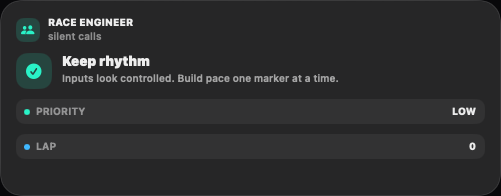 | Premium | 4x4 | Prioritized driving messages and engineer-style calls. |
| Shift Advisor | 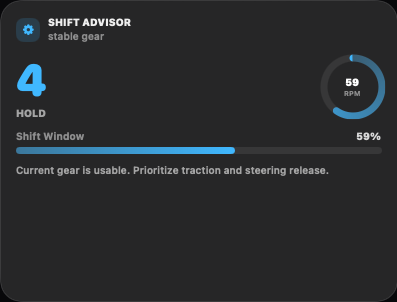 | Premium | 4x3 | RPM-based upshift timing guidance. |
Race Control
Race Control is the fastest way to build a readable first dashboard page. It
combines speed, RPM, gear, and inputs in one large card.
Analog Race Control
Analog Race Control is the most customizable speed/RPM widget. It supports
speed-only, RPM-only, or dual display; dial shapes; needle styles; tick density;
redline band visibility; digital value placement; colors; and transparent or
styled dial backgrounds.
Tyre And Grip Widgets
| Widget | Preview | Access | Default size | Best for |
|---|---|---|---|---|
| Tyres | 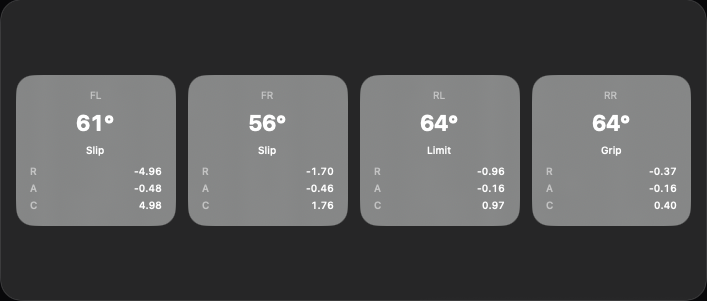 | Standard | 12x3 | Tyre temperatures, slip, pressure, and basic tyre state. |
| Drift Tyre HUD | 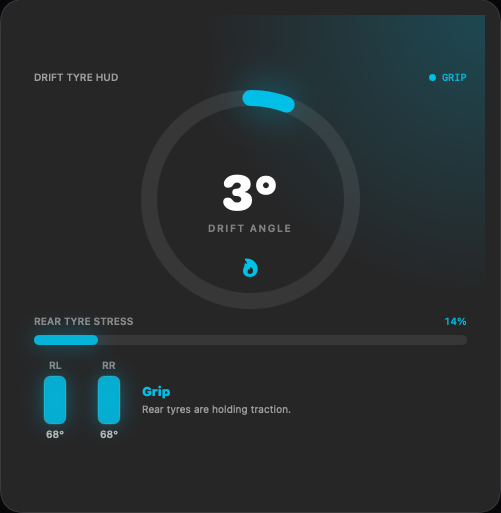 | Premium | 5x5 | Drift angle, rear tyre stress, and grip status. |
| Grip Window | 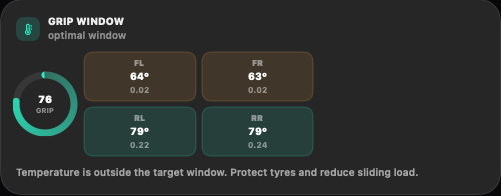 | Premium | 5x4 | Tyre temperature, slip, and grip confidence. |
Use these widgets only when the game exposes enough tyre data. Some titles expose temperature but not detailed slip or pressure; in that case the widget still loads, but some fields may stay empty.
Dynamics Widgets
| Widget | Preview | Access | Default size | Best for |
|---|---|---|---|---|
| Motion Stats | 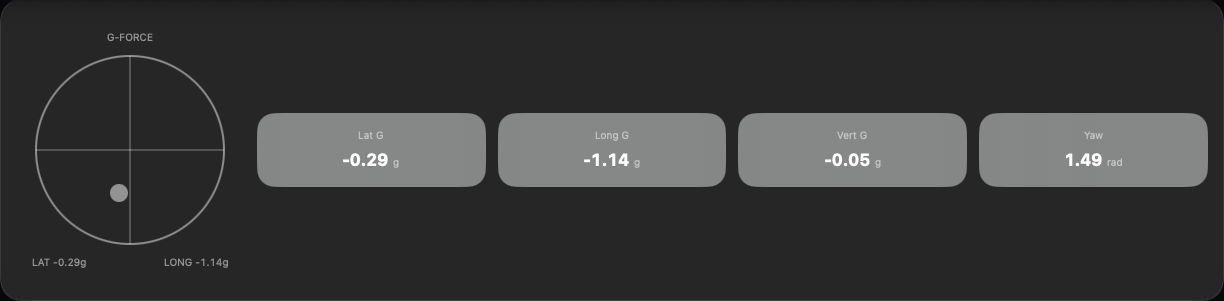 | Standard | 12x3 | Raw motion, G-force, yaw, pitch, and roll diagnostics. |
| G-Force | 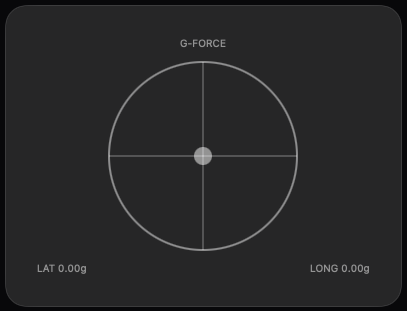 | Standard | 4x3 | Simple lateral and longitudinal G visualization. |
| G-Force Radar | 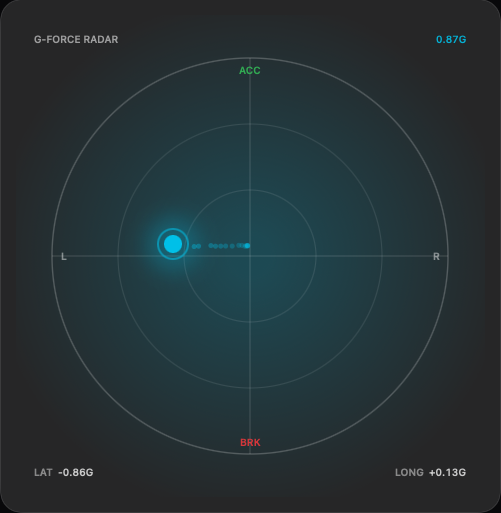 | Premium | 5x5 | Inertial G-force radar with motion trail. |
| Vehicle Balance | 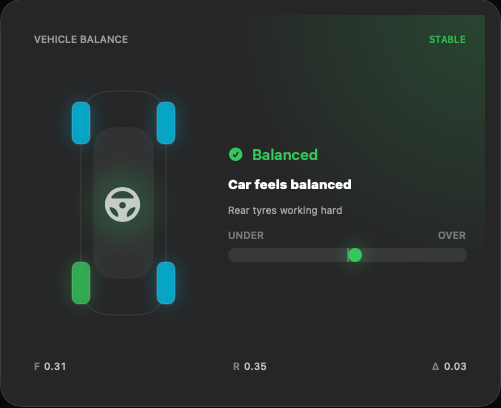 | Premium | 5x4 | Understeer, oversteer, tyre stress, and handling balance. |
| Car Dynamics | 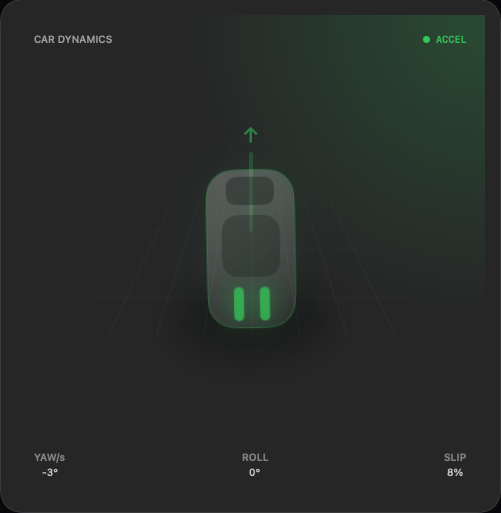 | Premium | 5x5 | 3D-style vehicle behavior visualization. |
Dynamics widgets are useful for driving analysis, setup testing, and replay
review. They are more sensitive to noisy parser data than basic speed or gear
widgets, so verify motion fields in Data if they look wrong.
Analysis And Coaching Widgets
| Widget | Preview | Access | Default size | Best for |
|---|---|---|---|---|
| Telemetry Graph | 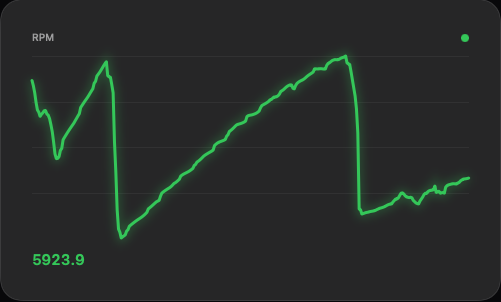 | Standard | 6x4 | Live graph for a single telemetry channel. |
| Multi Trace | 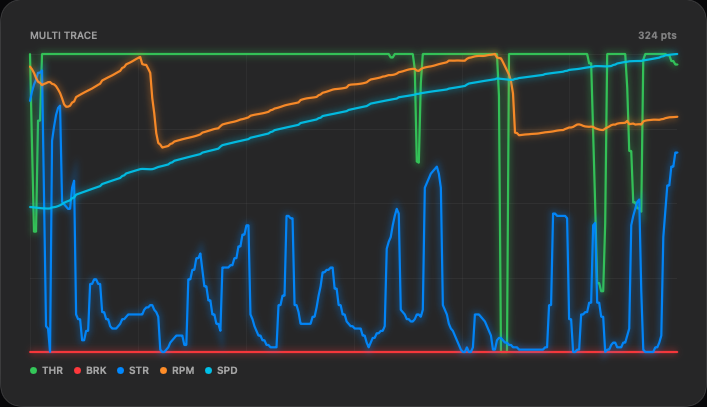 | Premium | 7x4 | Multi-channel trace for throttle, brake, steering, RPM, and speed. |
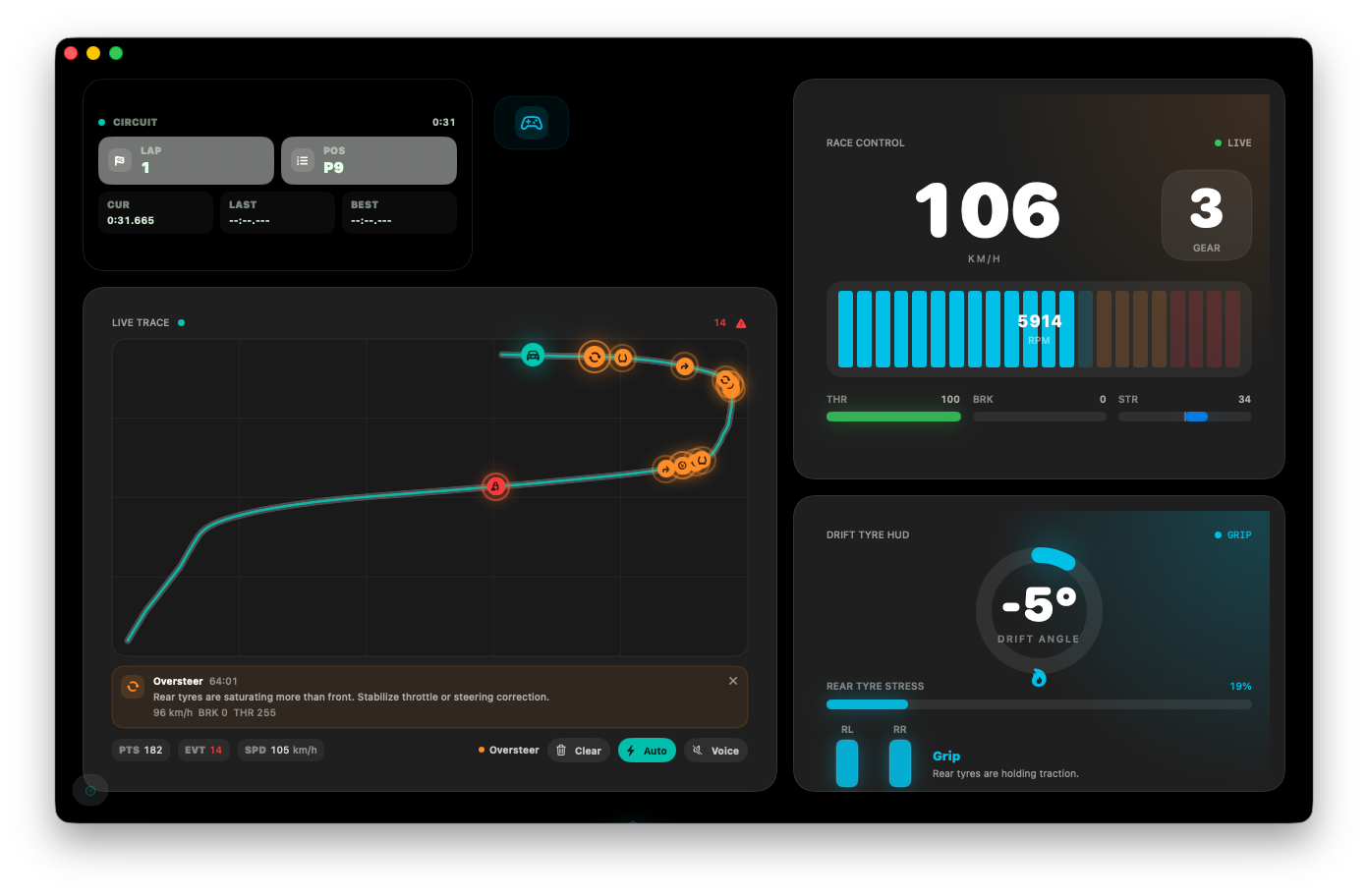
| Live Trace | 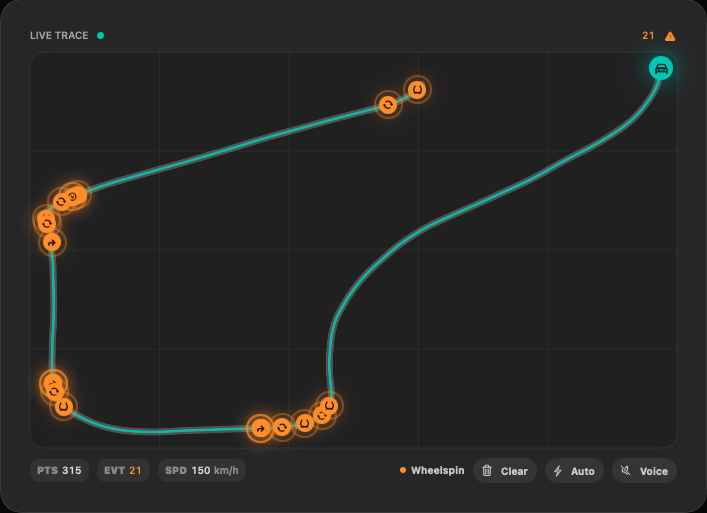 | Premium | 7x5 | Live driven path, event markers, and coaching events. |
| Braking Coach | 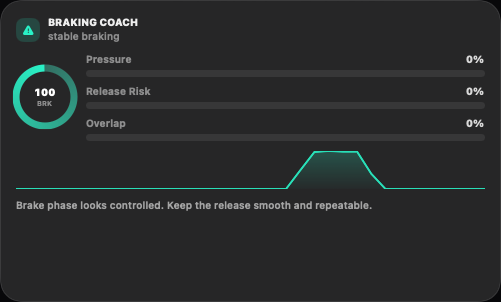 | Premium | 5x4 | Brake pressure, release, and stability feedback. |
| Corner Coach | 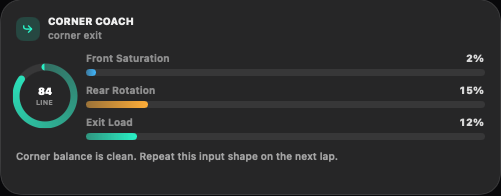 | Premium | 5x4 | Entry, apex, and exit advice. |
| Consistency Meter | 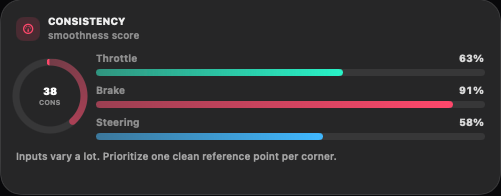 | Premium | 5x4 | Smoothness, repeatability, and driving consistency score. |
| Setup Feedback | 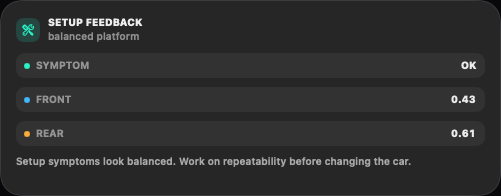 | Premium | 5x4 | Setup direction inferred from live handling symptoms. |
| Pace Compare | 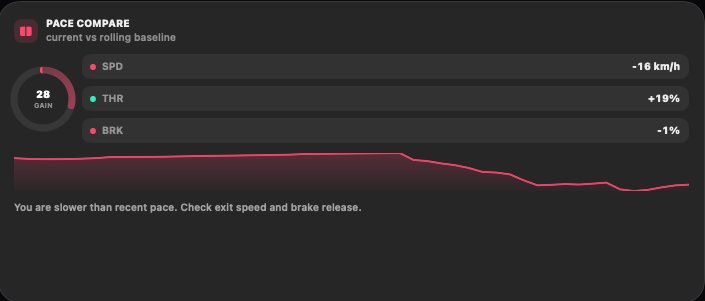 | Premium | 6x4 | Current pace compared with a recent rolling baseline. |
| Track Map Pro | 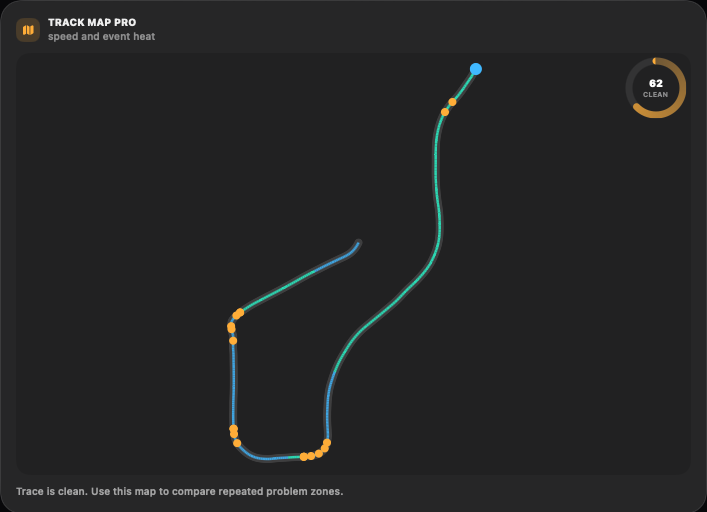 | Premium | 7x5 | Trace heatmap with event and speed zones. |
Live Trace
Live Trace uses the same analysis engine as sessions. It tracks path samples,
events, and detail cards while the widget is visible. For performance, keep this
on analysis pages or only one active page at a time.
Coaching Widgets
The coaching widgets are opinionated helpers. They are best used after confirming that speed, brake, throttle, tyre, and motion fields are mapped correctly for the selected game.
Data Widgets
| Widget | Preview | Access | Default size | Best for |
|---|---|---|---|---|
| Telemetry Tile | 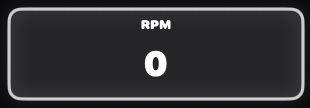 | Standard | 3x1 | Compact tile for any mapped telemetry value. |
Telemetry Tile is the fastest way to debug or expose one specific field. Use
it for custom game profiles, hardware testing, or niche values that do not need a
dedicated widget.
Controls Widgets
| Widget | Preview | Access | Default size | Best for |
|---|---|---|---|---|
| Action Button | 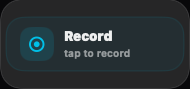 | Standard | 3x1 | Triggering DashForge actions, Bridge commands, or game controls. |
Action Button can start recording, save the live buffer, toggle UDP, or send a
Bridge command. Bridge commands can simulate keyboard, mouse, Win32, or gamepad
style inputs through DashForge Bridge.
Action Button also supports button-box skins:
CapsulePush ButtonOn / OffStart EngineRockerToggle Lever
Use skin colors and label placement to build readable control panels. Toggle skins keep a local visual state for Bridge commands, but they do not confirm the real state of the game.
Media Widgets
| Widget | Preview | Access | Default size | Best for |
|---|---|---|---|---|
| Image |  | Standard | 4x3 | Imported logos, custom plates, sponsor graphics, or cockpit decoration. |
| Text |  | Standard | 4x2 | Static labels or telemetry-linked text. |
| Sticker |  | Standard | 2x2 | Preset stickers, SF Symbols, emoji, or imported image overlays. |
Media widgets are useful for dashboard organization. Sticker can use built-in
presets, an SF Symbol name, text/emoji, or an imported asset from the dashboard
Asset Library. PNG files dropped on the dashboard are imported as Sticker widgets.
Keep media light on driving pages and use it more freely on presentation or
streaming layouts.
Complete Widget Checklist
DashForge 1.1.0 currently documents all implemented widget types:
| Category | Widgets |
|---|---|
| Vehicle | Speed, RPM Bar, Gear, Engine Stats, Fuel Status, Battery Status, Race Dial |
| Inputs | Inputs |
| Timing | Circuit Info, Lap Delta |
| Racing | Shift Light, Race Control, Analog Race Control, Race Engineer, Shift Advisor |
| Tyres | Tyres, Drift Tyre HUD, Grip Window |
| Dynamics | Motion Stats, G-Force, G-Force Radar, Vehicle Balance, Car Dynamics |
| Analysis | Telemetry Graph, Multi Trace, Live Trace, Braking Coach, Corner Coach, Consistency Meter, Setup Feedback, Pace Compare, Track Map Pro |
| Data | Telemetry Tile |
| Controls | Action Button |
| Media | Image, Text, Sticker |
Choosing Widgets For A Page
For a race page, start with Race Control or Analog Race Control, then add
Circuit Info, Fuel Status, Battery Status, and one compact input or shift
widget.
For an analysis page, use Live Trace, Telemetry Graph, Multi Trace, tyres,
and one or two coaching widgets.
For a hardware or stream page, use Action Button, Telemetry Tile, Inputs,
and simple media widgets to label controls.
Performance Tips
- Keep high-frequency visual widgets such as
Live Trace,Multi Trace,G-Force Radar, andCar Dynamicson separate pages when FPS matters. - Prefer compact bar modes for fuel and battery on small displays.
- Use
Telemetry Tileinstead of a full widget when you only need one value. - Keep decorative Image and Sticker widgets behind telemetry widgets by using a lower z-index when building layered dashboards.
- If a widget looks wrong, check the field in
Databefore assuming the widget itself is broken.