UDP Setup
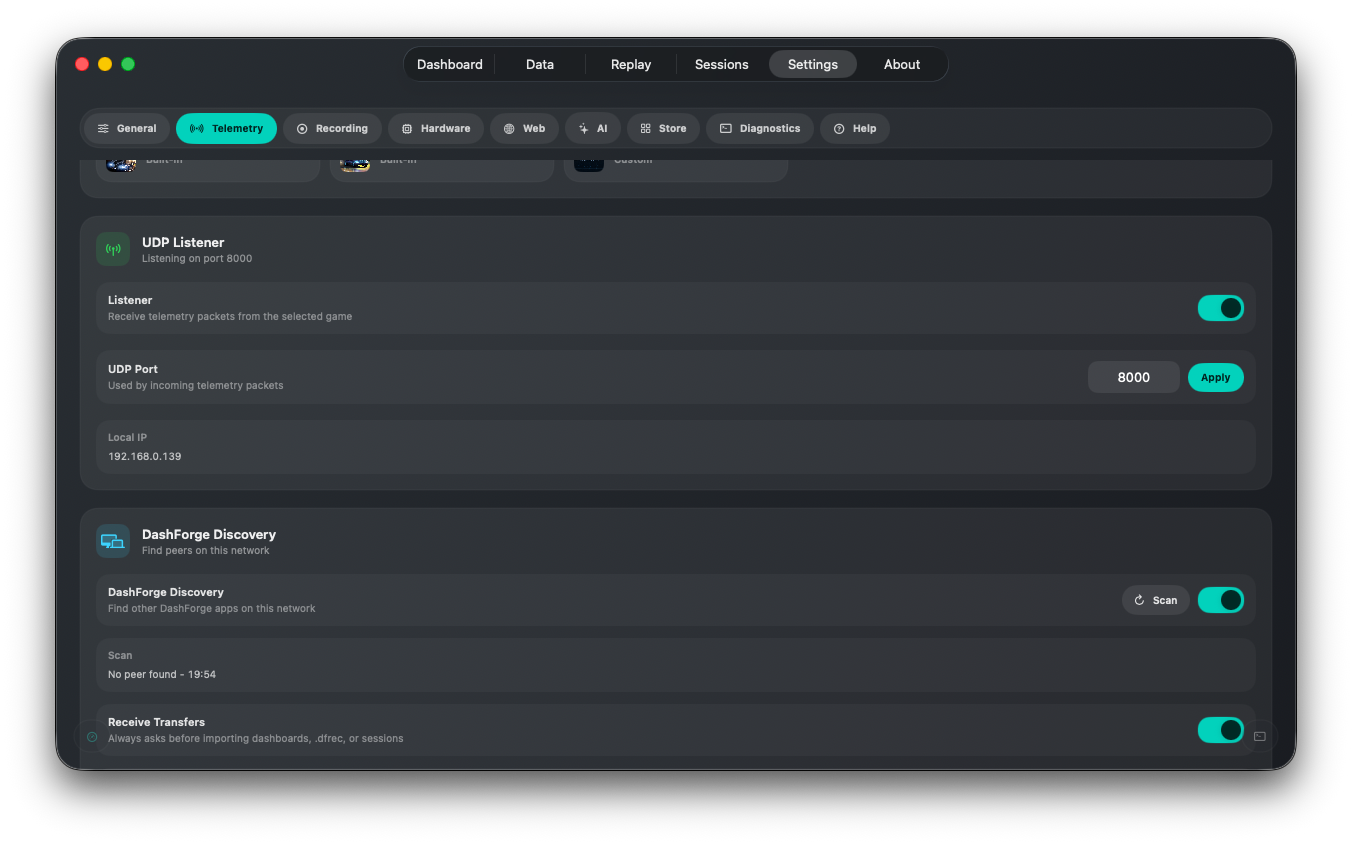
DashForge receives telemetry data using UDP packets sent by racing games.
Finding Your Device IP
Your game must send telemetry data to the device running DashForge.
Example local IP:
192.168.1.42
Default Port
DashForge default UDP port:
8000
You can change the port inside the app settings.
This port is for telemetry received by DashForge. Game control commands sent to
DFBridge use a separate command port, usually 8765.
See:
Typical Game Configuration
Most games provide telemetry options similar to:
| Setting | Example |
|---|---|
| UDP Telemetry | Enabled |
| IP Address | 192.168.1.42 |
| Port | 8000 |
Troubleshooting
No telemetry received
Check:
- game telemetry enabled
- correct IP address
- correct UDP port
- firewall permissions
- same local network
Firewall Issues
macOS may block incoming UDP packets.
Allow DashForge in:
System Settings → Network → Firewall
Supported Games
See the dedicated Supported Games page for the full list, support type, and setup path for each game.
Additional games can be added through Custom Game Profiles.
Euro Truck Simulator 2 / American Truck Simulator
ETS2 and ATS expose telemetry through the official SCS Telemetry SDK. DashForge uses a native plugin instead of memory reading.
- Download
DashForgeSCSPlugin-1.1.0.zipfrom Downloads and Companion Tools. - Copy
dashforge_scs_plugin.soon macOS ordashforge_scs_plugin.dllon Windows into the game'spluginsfolder. - Copy
dashforge_scs_plugin.cfgnext to the plugin. - Select the native
Euro Truck Simulator 2orAmerican Truck Simulatorgame profile in DashForge. - Start DashForge UDP listener on the configured port, usually
8000.
Default Windows plugin folders:
Euro Truck Simulator 2\bin\win_x64\plugins\
American Truck Simulator\bin\win_x64\plugins\
Default macOS plugin folder inside the Steam app bundle:
Euro Truck Simulator 2.app/Contents/MacOS/plugins/
American Truck Simulator.app/Contents/MacOS/plugins/
Plugin config:
host=127.0.0.1
port=8000
rate_hz=60
log=1
Forward Telemetry to Another Device
Open Settings > Telemetry > UDP Forwarder to relay raw incoming packets to one
or more targets. Each target can be enabled independently.
Use Forward Only when the current device should relay packets without parsing
or rendering them locally.
DashForge 1.1.0 can discover another DashForge and add it as a forward target without entering an IP address. See Network Discovery and Sharing.
Packet Rate and UI Rate
DashForge receives packets at the game's rate, while the configurable UI refresh rate controls how often the visible telemetry snapshot is published to SwiftUI. Lowering UI rate does not intentionally drop raw packets used by recording or forwarding.
For diagnostics, enable the floating performance panel to inspect UDP PPS, replay PPS, UI Hz, FPS, CPU, memory, and network throughput.